
Features › Editing
An editor that knows your schema
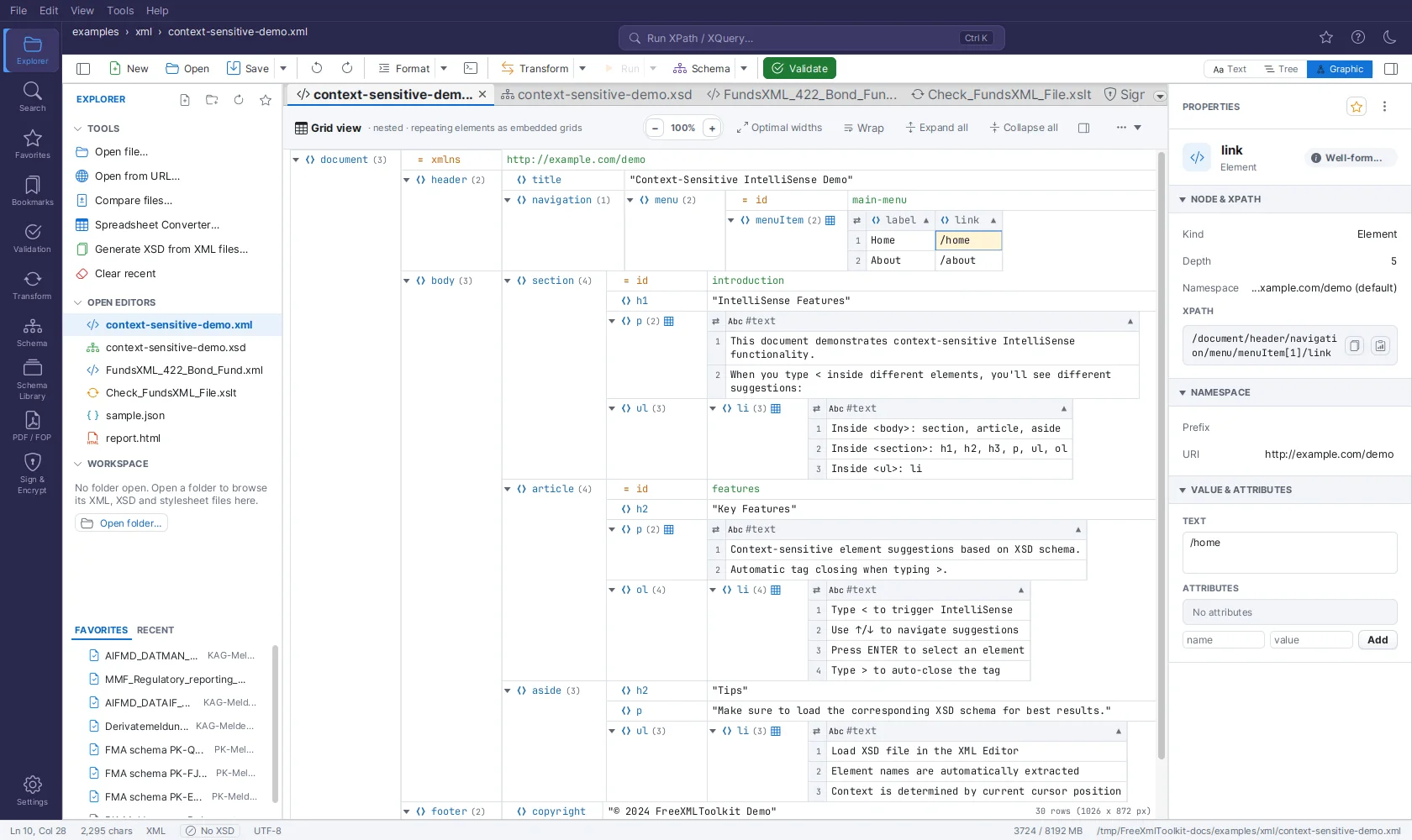
Text, Tree and Grid are three views of the same document. The bound schema drives completion, validation and the properties of every node.
Views
One document, three views
Text, Tree and Grid share one undo history, and switching views keeps the node you were on.
- Text view with syntax highlighting, code folding, formatting and minifying
- Tree view for the structure, Grid for repeating elements
- A rendered Preview for HTML documents
- Files changed by another program are noticed and reloaded on request
Auto-completion
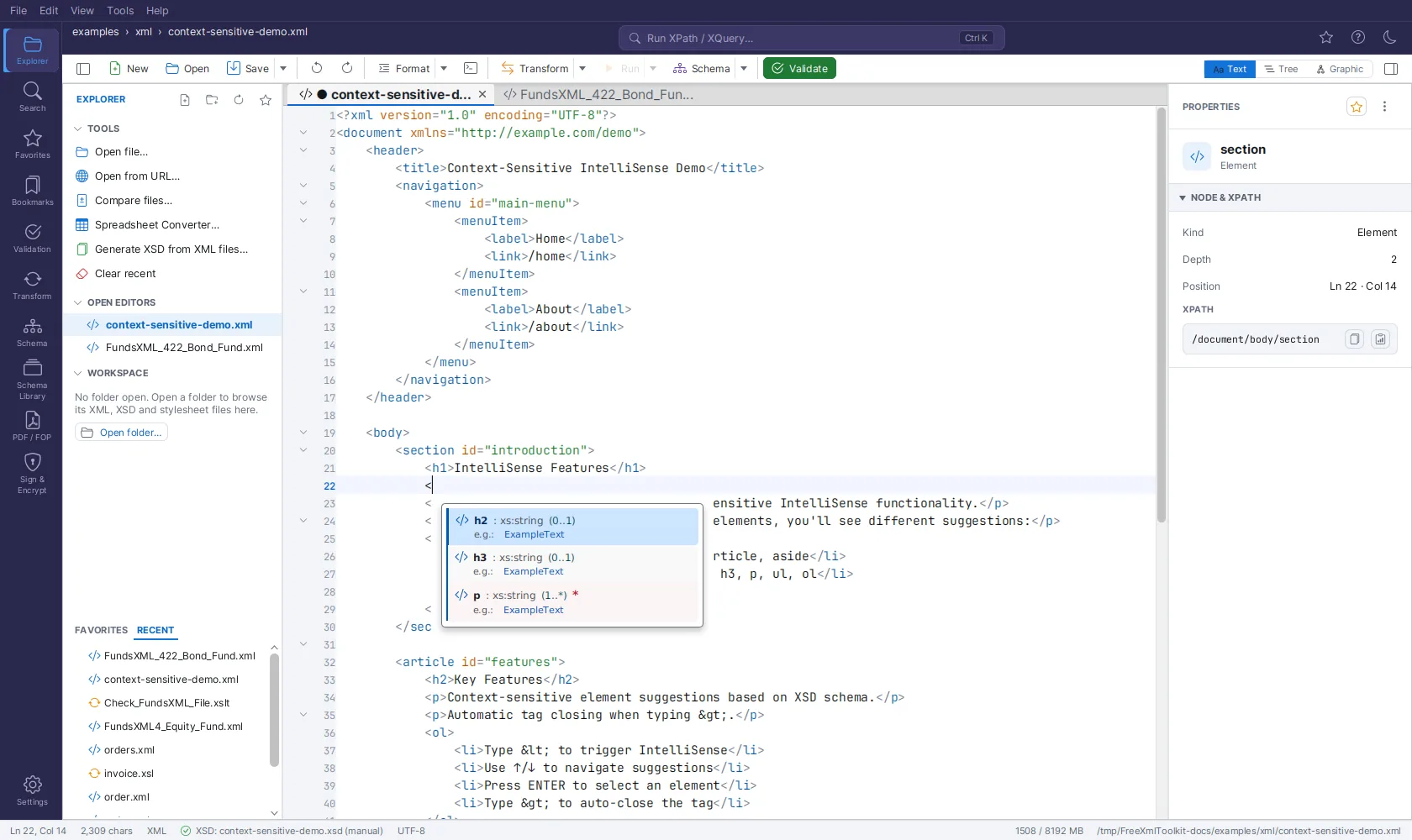
Only what the schema allows
The completion list is built from the bound schema for the exact place of the caret.
- Elements, attributes and enumeration values from the XSD
- Works with DTD and RELAX NG schemas too
- The schema is found from the document, the project or the Schema Library
- Validation runs while you type
Grid
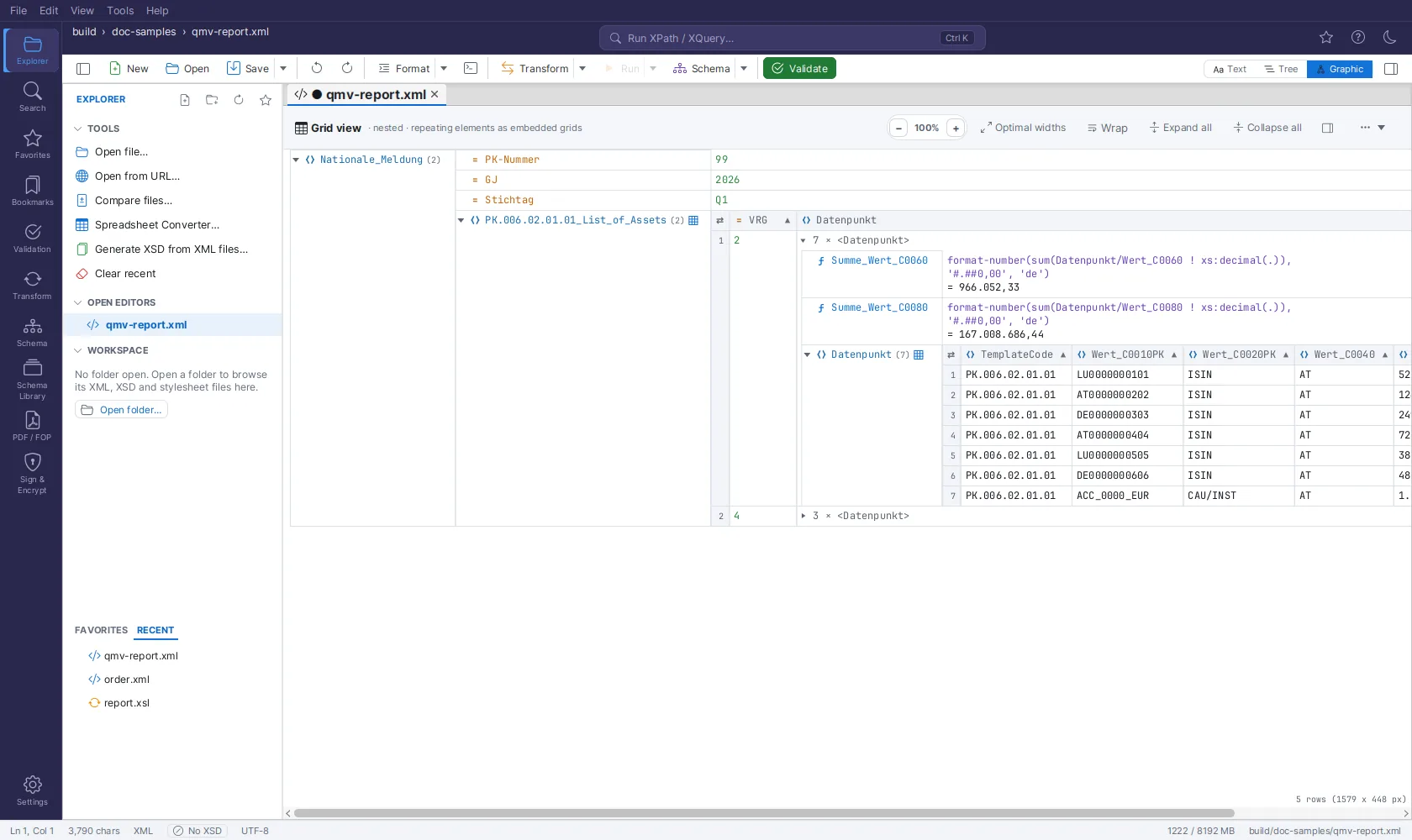
Tables, filters and formulas
Repeating elements become editable tables, at any depth of nesting.
- Sort and filter rows, add sums and other formulas
- Insert, rename and move columns; paste cells from a spreadsheet
- Entry helpers list the siblings, children and values the schema allows
- Drag and drop to move nodes
Properties
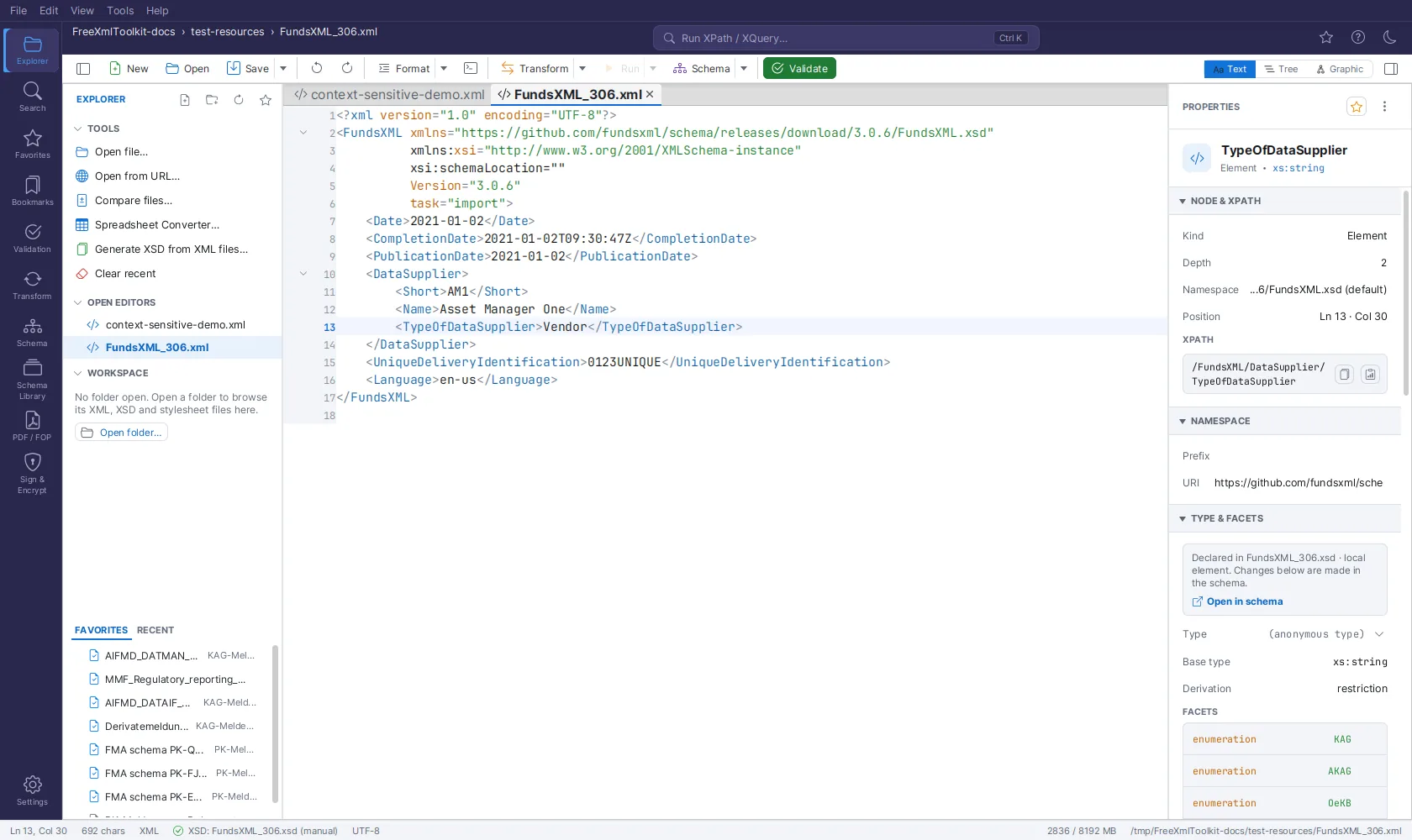
Everything about the node at the caret
The inspector on the right shows what the schema says about the selected node, in every view.
- Type, cardinality, facets and documentation
- Edit values and attributes in place
- Change the declaration in the XSD without leaving the XML document
Large files
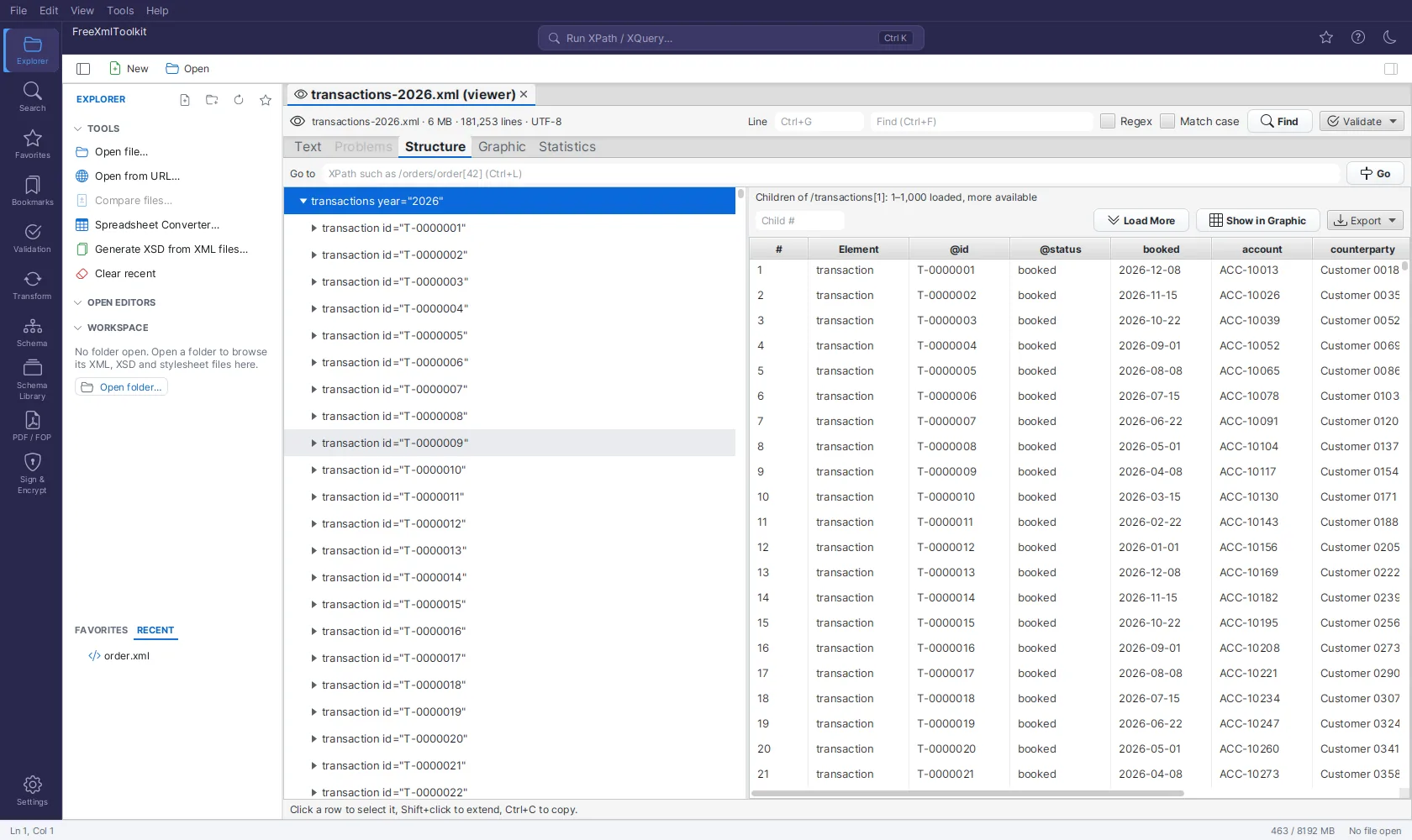
Files of several gigabytes
Files from 50 MB open in the Large File Viewer, which reads from disk only what it shows.
- Text, structure tree, record table and statistics
- Edit a part of the file in the grid and write it back
- Streaming validation against an XSD
- Export records to CSV or Excel
JSON and YAML
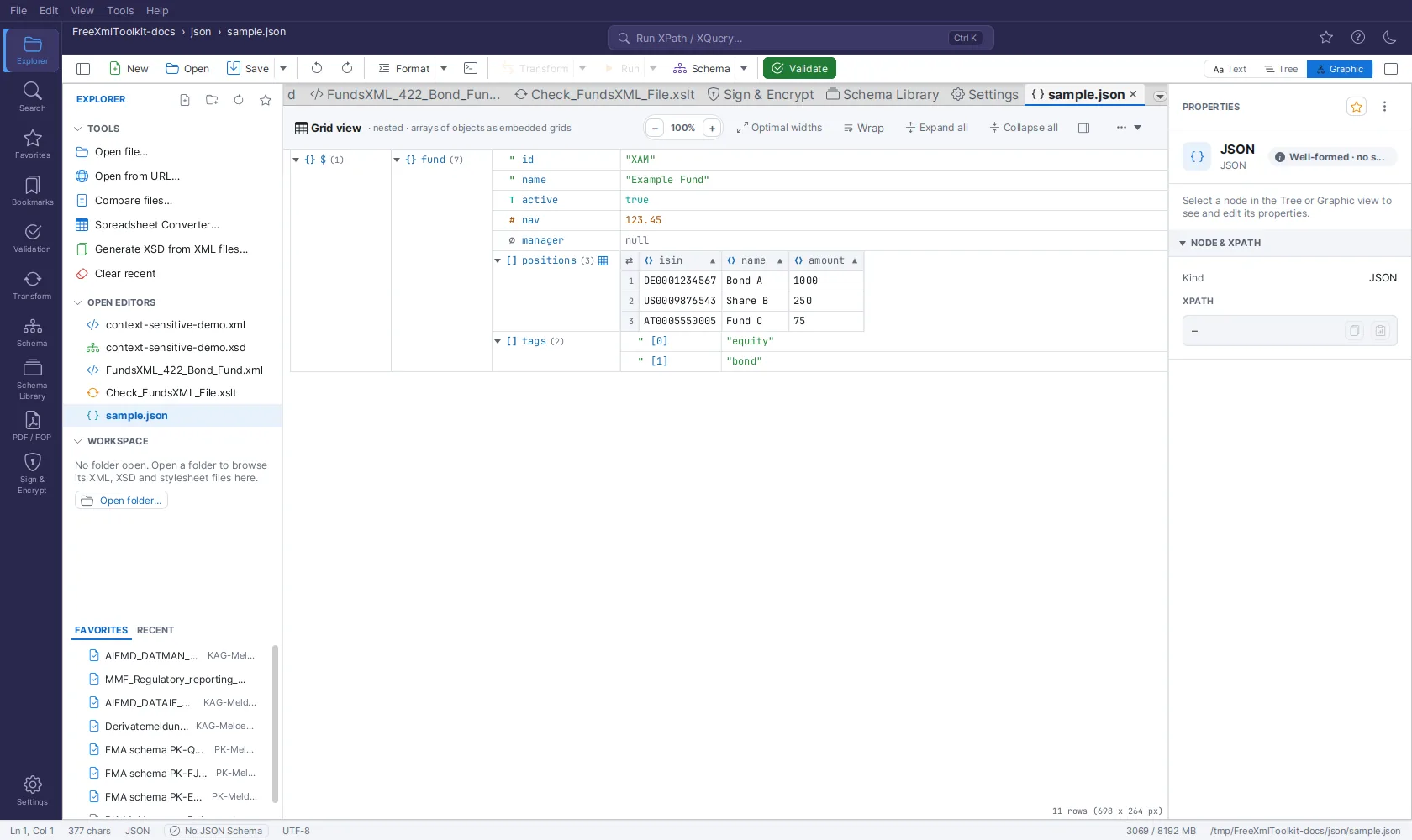
The same views for JSON and YAML
JSON, JSON5 and YAML documents get Text, Tree and Grid as well.
- Validation against JSON Schema Draft-07, 2019-09 and 2020-12
- JSONPath in the Query Console
- Conversion to and from XML
Find and organise
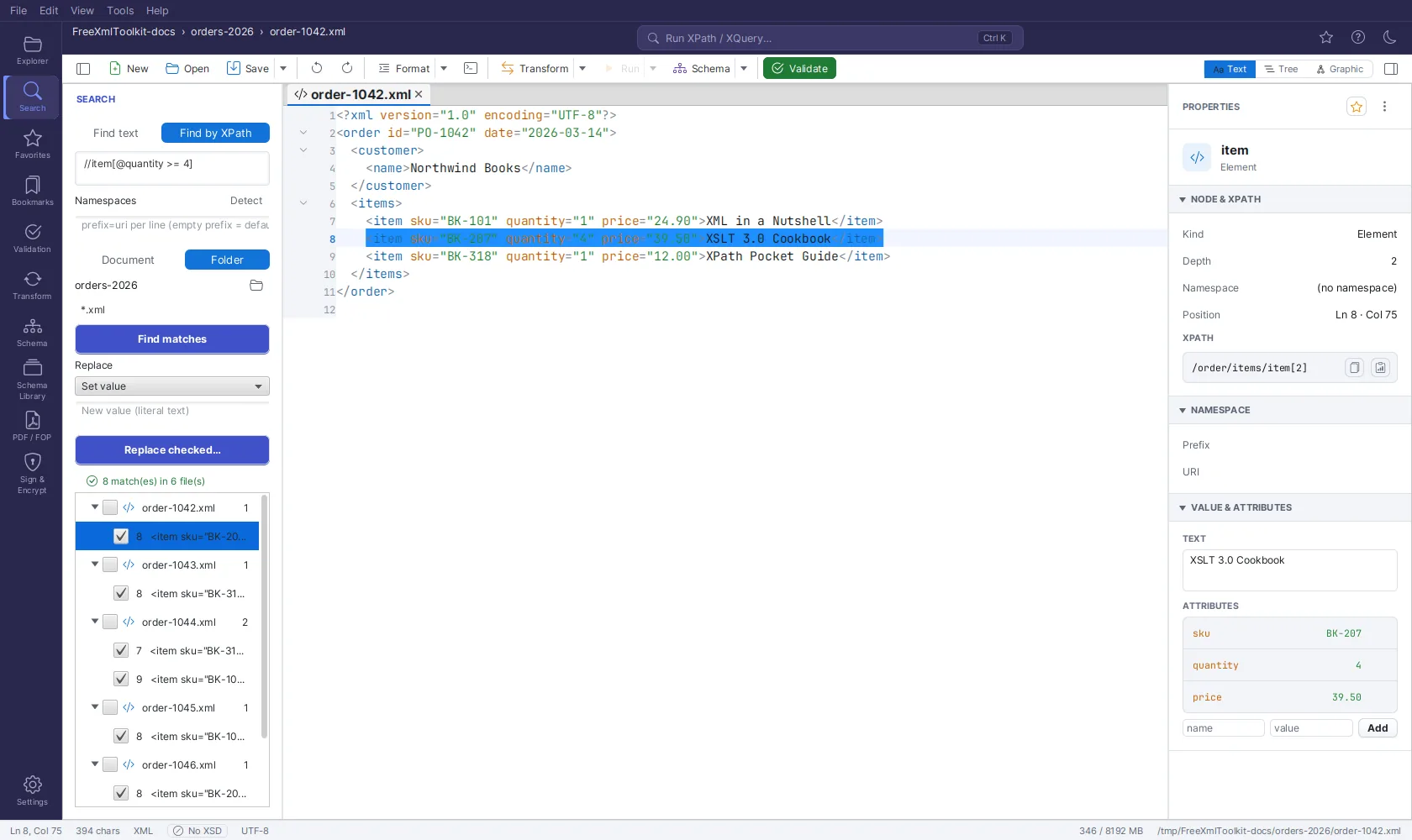
Find it again
Search across folders, and keep the places and files you return to.
- Find and replace across files, by text or by XPath
- Line bookmarks, nine of them numbered, that follow your edits
- Favorites for files, templates for new ones